An AI animation video generator turns a written idea into moving pictures: characters that act, a camera that moves, and sound that fits the scene. The hard part is not pressing Generate. It is deciding where to start, which look to use, and how much to put into one clip.
This guide covers three starting points in MkAnime: a text prompt, a short story that becomes a storyboard image first, and a character that you want to animate across several shots. It also explains how to choose a cartoon, 3D, or anime style, and what each route can and cannot do.
Before you write anything, decide what you already have:
| You have | Best route | What you get |
|---|
| A clear scene in words | Text to video | One 5 to 30 second clip |
| A short story idea and a look in mind | Story to storyboard to video | One storyboard image, then a 15-second clip |
| A character you want to keep across shots | A project | A storyboard of shots, each animated separately |
All three need you to sign in before you generate. The two quick tools in Routes 1 and 2 each run one generation at a time per account, so let one job finish before you start the next.
Route 1: Text to animated video
The Seedance 2.5 video generator is the most direct route. You write a prompt, choose the format, and get a clip.
- Prompt: 3 to 12,000 characters. Long prompts are allowed, so you can describe several beats in order.
- Aspect ratio: 16:9 for YouTube and desktop, 9:16 for Shorts, Reels, and TikTok.
- Resolution: 480p, 720p, or 1080p.
- Length: 5, 10, 15, or 30 seconds.
- Sound: on by default, so the clip comes with audio. Switch it off if you plan to add your own music.
This tool has no image upload and no style picker. The look comes from your words, so name it plainly at the start of the prompt: "3D animated short, soft rounded shapes, warm studio lighting" or "2D cartoon, thick outlines, flat colors, bouncy motion." Then describe what happens, in order:
2D cartoon style, thick black outlines, flat bright colors. A small orange fox runs into a kitchen, skids on the tiled floor, and bumps into a table. A cup wobbles on the edge. The fox freezes, looks up, and slowly grins as the cup settles. Static camera at the fox's eye level. Ends on the grin.
One subject, one chain of actions, one camera choice, and a clear last frame. That structure matters more than adjectives.
Route 2: Story to storyboard to video
If you care about the exact look, start from a picture instead of words alone. The GPT Image2 to Video generator works in three steps:
- Write the story. A short prompt of 3 to 4,000 characters, such as "a seaside tram passes a quiet platform as a boy chases the light inside a glass bottle."
- Generate the storyboard. You pick a style from the Style Picker, and the tool draws one 2K storyboard image that lays out the character, setting, and shot order.
- Generate the video. When the storyboard looks right, the tool turns it into a 15-second, 16:9 clip at 720p with sound, using Seedance 2.0.
The storyboard step is your checkpoint. If the character or setting is wrong in the image, fix the story prompt and generate the storyboard again before you start the video. That costs less time than finding the problem in the finished clip.
This route fixes the format: always 15 seconds, always 16:9. For vertical video or a different length, use Route 1 or a project.
A single clip is fine for a gag or a mood piece. For a short with the same character in several shots, use a project. A project turns a story into a storyboard of shots, and each shot has its own image and its own video.
In a project you can:
- Choose the video model per shot: Seedance 2.5, Seedance 2.0, Seedance 2.0 Fast, or Kling 3.0.
- Set the format: 16:9, 9:16, or 1:1.
- Set the length: 5, 10, or 15 seconds, plus 30 seconds with Seedance 2.5.
- Start from the shot image: the storyboard image becomes the first frame, and you can also set an end frame.
- Add reference images: upload 1 to 4 images of a character or prop as an element, then mention it in the shot prompt so the model keeps it consistent.
If you do not have a character yet, design one first in the anime character creator and use the result as your reference. The cartoon character maker guide explains how to write a brief that holds up in a cartoon style.
The Style Picker is used when you generate images: in the character creator, in the GPT Image2 to Video storyboard step, and when you create a project. Styles are grouped under tabs such as 3D, Western, Anime, Cute Chibi, and Illustrative. At the time of writing, these presets are a good place to start for animation:
3D animated looks
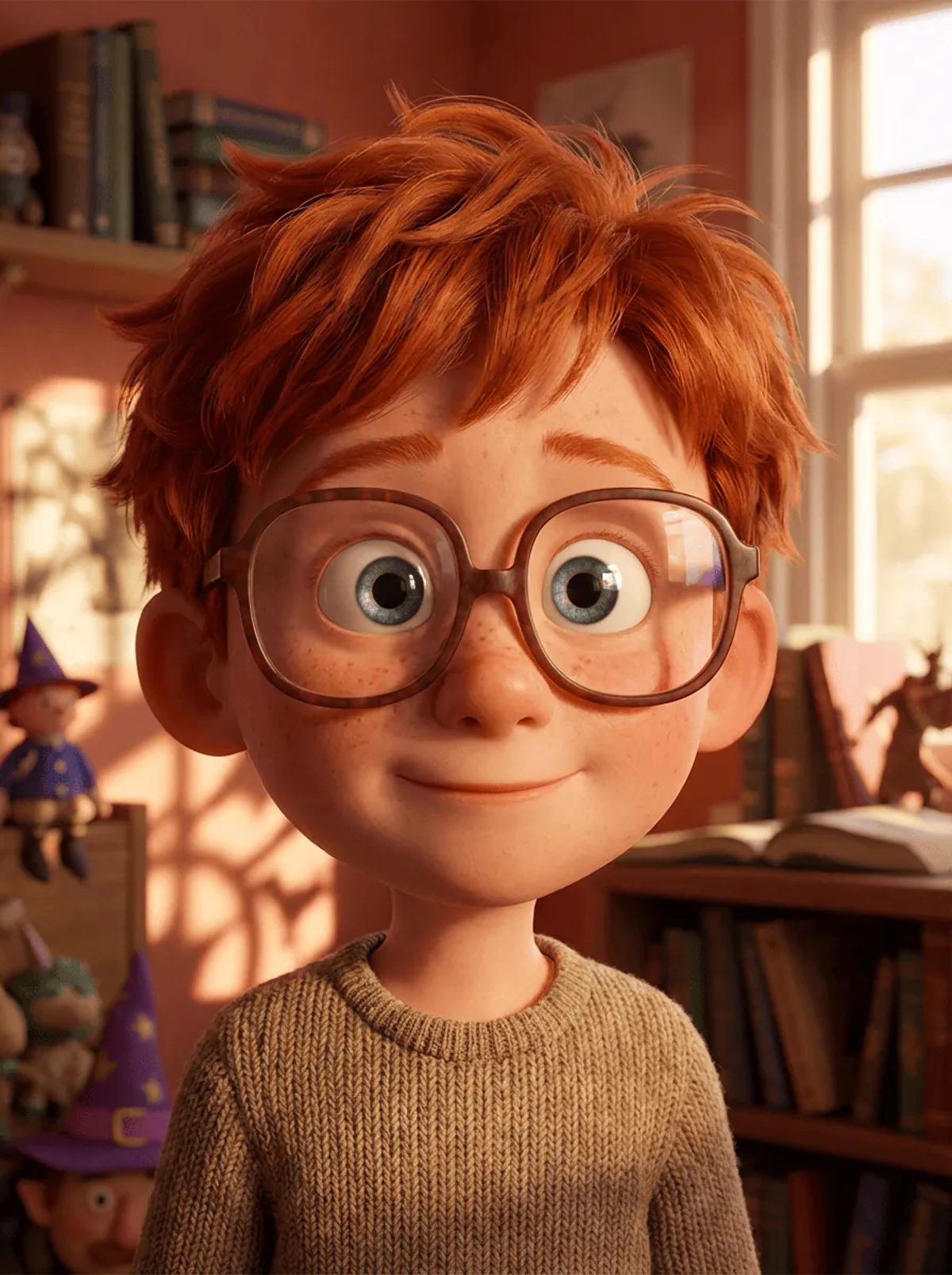
- American 3D for a 3D animated-movie look with soft light and rounded shapes.
- Cel-Shaded 3D for 3D forms with anime-style flat shading.
- 3D Chibi for small, big-headed 3D characters.
- Clay Toy for a handmade, clay-figure feel.
Cartoon looks
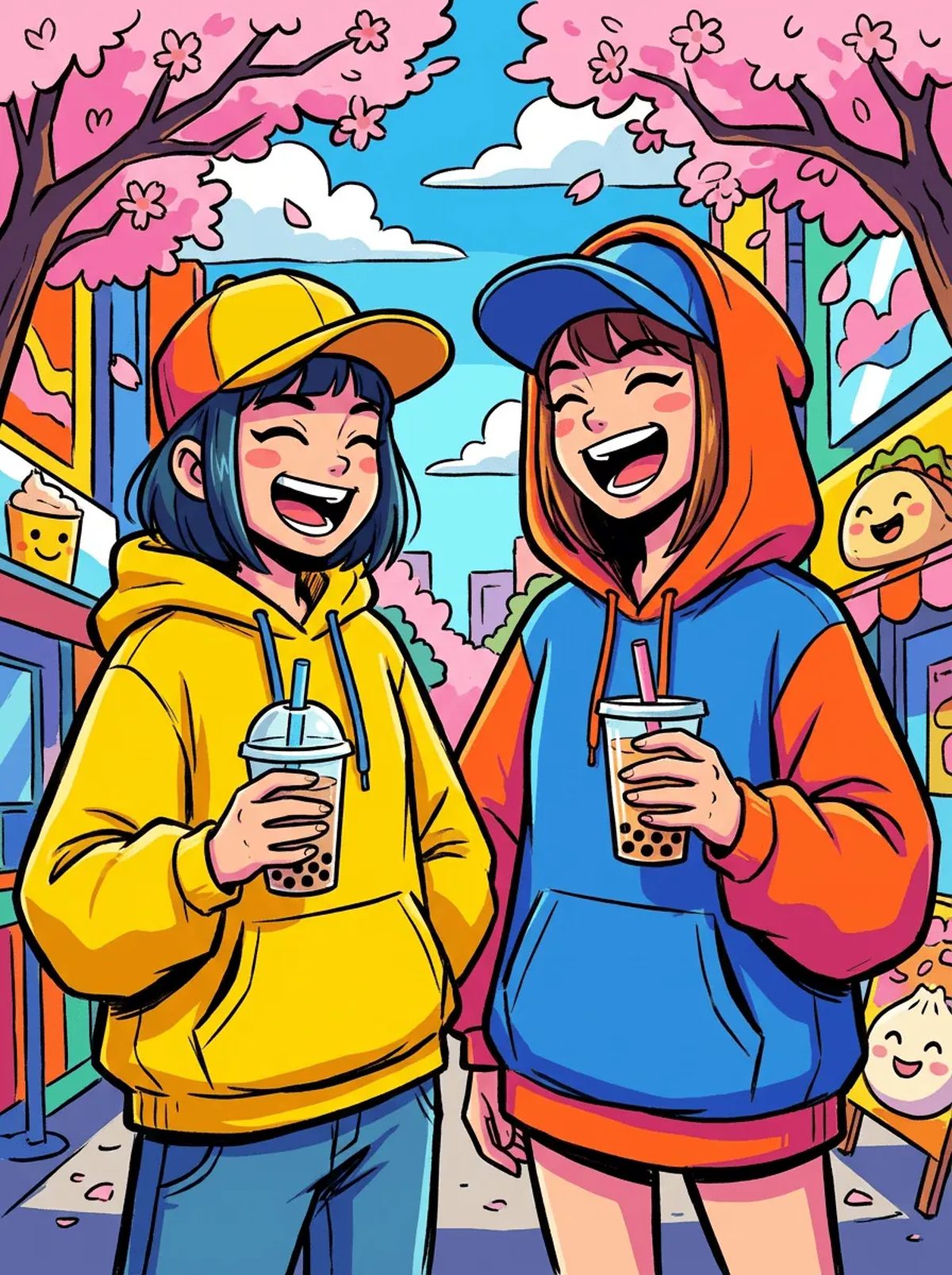
- Bold Dynamic Toon and Bold Block Toon for thick outlines and energetic shapes.
- Classic American Comics for inked lines and comic-book color.
- American Comedy for a TV-cartoon look.
- Retro Nostalgic Cel Animation for an old hand-painted cel feel.
Anime looks
- The Anime tab has the Japanese-style presets, from clean modern looks to detailed manga line work.
Pick the style before you generate the first image and keep it for the whole piece. Switching styles halfway makes the same character look like a different one.
Animated video looks good when the motion is simple and readable. A few habits help in every route:
- One main action per clip. "The fox skids and bumps the table" works. "The fox skids, climbs the shelf, juggles three cups, and jumps out the window" usually turns into mush.
- Cause before effect. Write what triggers the motion, then what reacts: "the door slams, then the picture frame tilts."
- Give the camera one job. Hold, push in, pull back, or follow. Stacking moves confuses the model.
- Describe the last frame. "Ends on a close-up of the grin" gives the clip a finish you can cut on.
- Keep text out of the frame. Signs and captions tend to warp when the picture moves. Add titles in your editor instead.
For ready-made motion wording, see the image-to-video prompt templates for anime.
Watch the clip at full size, then once more with sound:
- Identity. Does the character keep the same face, colors, and outfit from start to end?
- Motion. Is the main action easy to follow, without extra limbs or objects appearing?
- Camera. Did the camera do what you asked and nothing more?
- Ending. Does the last frame land where you described it?
- Sound. Does the audio match what is on screen?
If one thing is off, change one part of the prompt and generate again, so you know which change fixed it.
- One clip per generation. Longer stories are built from several clips, which is what projects are for.
- No upload in the two quick tools. The Seedance 2.5 tool and GPT Image2 to Video start from text. To animate an image you already have, upload it as a reference inside a project.
- Your own characters only. Do not use the tools to recreate characters or scenes from existing films, shows, or games.
Can AI make an animated video from text?
Yes. In the Seedance 2.5 video generator you write a prompt, choose 16:9 or 9:16, a resolution up to 1080p, and a length of 5, 10, 15, or 30 seconds, and the tool generates an animated clip with sound.
Yes. In a text prompt, name the cartoon look at the start, such as thick outlines and flat colors. When you generate images first, pick a cartoon preset in the Style Picker, such as Bold Dynamic Toon, Classic American Comics, or American Comedy.
Yes, inside a project. Upload 1 to 4 images of the character as a reference element and mention it in a shot's video prompt, or use a storyboard image as the first frame. The Seedance 2.5 tool and GPT Image2 to Video do not take image uploads.
A single clip runs 5, 10, 15, or 30 seconds with Seedance 2.5. GPT Image2 to Video always makes 15 seconds. For a longer piece, build several shots in a project and join them.
You need to sign in to generate. Check the pricing page for the current plans before you start.
