
Subject & setting
Name the character or object and where the scene takes place — a rooftop at dusk, a rain-soaked alley, a quiet classroom.
Seedance 2.5
Seedance 2.5
Your generated video appears here
Write or load a prompt, review the live credit estimate, and start the generation when the settings look right.
Turn a complete scene prompt into a 5–30 second AI video with controllable format, resolution, duration, generated audio, and saved history.
Text-to-Video
Seedance 2.5 turns a written scene description into a short cinematic video clip — no filming, no reference footage, no editing timeline. Describe the subject, the action, and the camera move, and the model renders a 5 to 30 second clip in your chosen format, complete with generated audio if you want it.
How it works
Describe the subject, the action, the camera movement, the pacing, and the mood in one prompt — Seedance 2.5 reads it as a single continuous shot.
Pick 16:9 or 9:16, choose 480p, 720p, or 1080p, set a duration from 5 to 30 seconds, and turn generated audio on if the scene needs sound.
Render the clip, watch it in the built-in preview, and download it in original quality — every generation is saved to your history so you can revisit or remix it later.
Prompt tips
The model responds best to prompts that read like a shot description rather than a list of keywords.
Name the character or object and where the scene takes place — a rooftop at dusk, a rain-soaked alley, a quiet classroom.
State what happens during the shot: a sword swing, a slow turn to camera, hair moving in the wind.
Direct the camera the way you would on set — push in, pan left, orbit around the subject, or hold a static frame.
Add lighting, weather, and ambient sound cues — neon glow, distant thunder, footsteps on gravel — to shape the mood.
Controls
Use cases
A quick way to turn a script beat or a character moment into motion.
Turn a key moment from your script into a punchy teaser clip before the full episode is ready.
Bring a character sheet to life with a short performance clip that shows personality and motion.
Generate vertical 9:16 clips sized for TikTok, Reels, and YouTube Shorts straight out of the tool.
Prototype a cutscene or loading-screen moment before committing render budget to it.
Match a lyric or beat to a generated scene for a quick visualizer or promo cut.
Show a scene in motion when a storyboard frame alone isn't enough to sell the idea.
Cartoon & animation
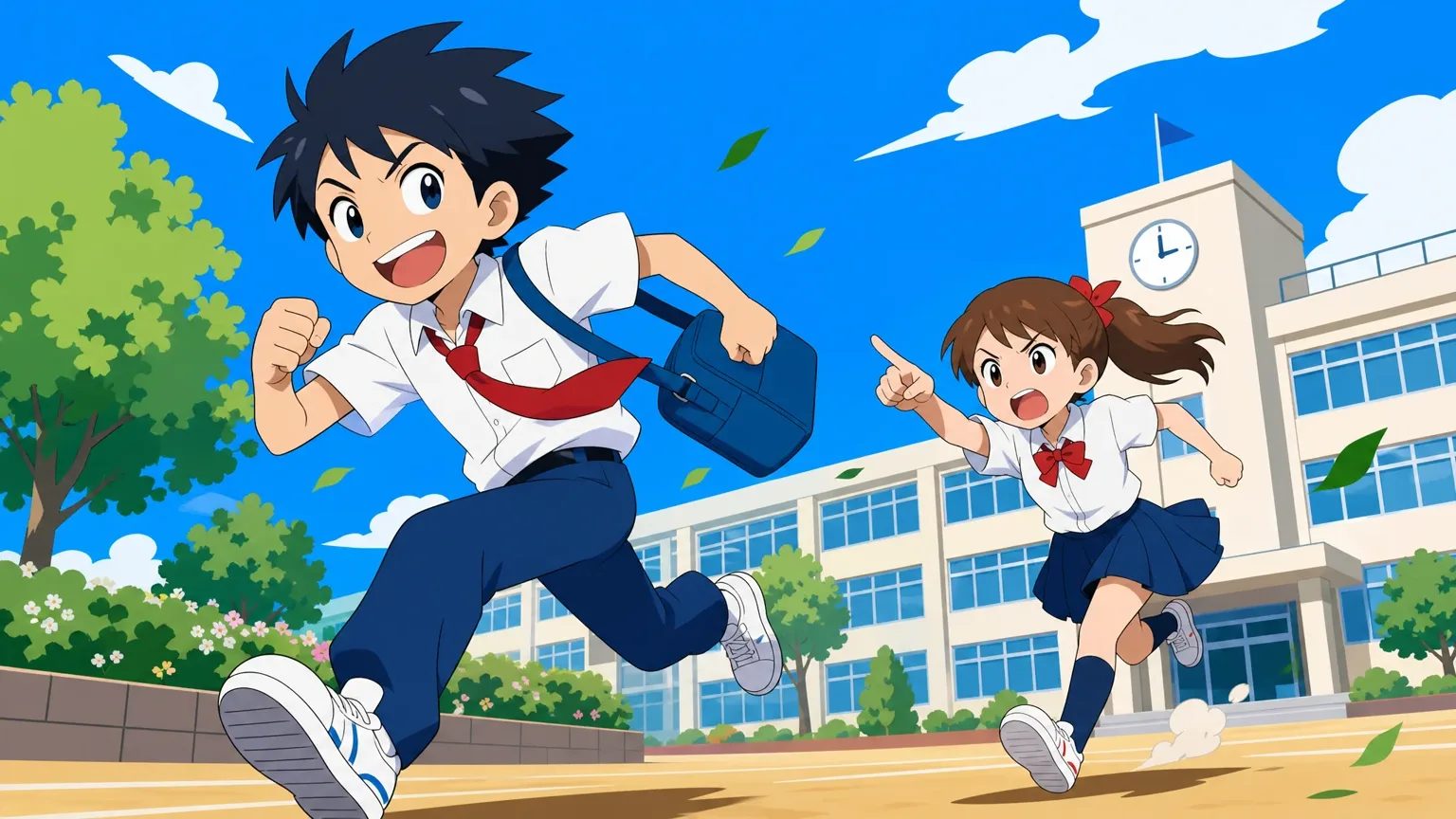
Looking for an AI animated video generator or a cartoon video generator? Seedance 2.5 renders animated, cartoon-style clips from text alone. There is no separate style switch: the look comes from your prompt, so name it first — 2D anime with cel shading, a glossy 3D cartoon render, flat vector animation, or chibi proportions — then describe the character, one clear action, and the camera move. Keep one style per prompt; mixing hand-drawn anime and 3D in the same shot usually gives a muddy result. Each generation is one continuous shot of 5, 10, 15, or 30 seconds in 16:9 or 9:16, at 480p, 720p, or 1080p, with optional synced audio such as cartoon sound effects or ambience. For a multi-shot animated episode with the same characters in every scene, start a project instead, where characters and storyboards carry across shots.
FAQ
Seedance 2.5 is Bytedance's text-to-video model. On MkAnime, you write a scene prompt and the tool generates a 5 to 30 second video clip in the format, resolution, and duration you choose.
No. This tool generates video from a text prompt only. If you want to animate an existing image instead, use MkAnime's Image-to-Video tool.
You can generate 5, 10, 15, or 30 second clips at 480p, 720p, or 1080p, in either 16:9 or 9:16 aspect ratio.
Yes. Turn on generated audio before you render and the model will produce sound synced to the scene, alongside the video.
Yes, videos you generate are yours to use, including in commercial projects, subject to MkAnime's terms of service.
Every clip you generate is saved to your history below the composer, so you can revisit, re-download, or reuse the prompt at any time.
Yes. Write the style into your prompt — for example “2D anime, cel shading” or “3D cartoon render” — and the model renders the clip in that look. This page generates from text only; to animate your own drawing or character image, use MkAnime's image-to-video tool. Results vary between runs, so regenerate or tighten the style words if the look drifts.
Keep exploring
Study tested prompts paired with real video results, then load one straight into this generator.
See what Seedance 2.5 can do and how it fits into an anime project workflow in MkAnime.
Watch five generated anime scenes with prompt-level notes on motion, style, and audio.
Create an anime project, then choose Seedance 2.5 as the video model for your storyboard shots.
Turn a funny, cute, or cinematic cat idea into a standalone anime clip from one prompt.
Create a warm, heroic, or playful anime dog clip from a focused text prompt.
Start creating
Write a prompt, set your format, and see Seedance 2.5 render it in minutes.