
Back to blog
Oct 27, 2026
2D Character Maker & Pixel Character Creator With AI | MkAnime
Make a 2D or pixel-art character with AI: pick a flat 2D or pixel style, write a shape-first brief, and get a 3:4 front view plus a front, side, and back sheet.
Oct 27, 2026
Make a 2D or pixel-art character with AI: pick a flat 2D or pixel style, write a shape-first brief, and get a 3:4 front view plus a front, side, and back sheet.
A 2D character lives on flat shapes: clear outlines, a few solid colors, and a silhouette you can read at a glance. Pixel art pushes that further, because every detail has to survive being built from visible squares. Both looks reward the same habit: decide the big shapes first and let the small details go.
This guide shows how to use the MkAnime anime character creator as a 2D character maker and a pixel character creator: which style presets to pick, how to write a brief that works in flat and pixel looks, and what the tool does not do, such as sprite sheets or transparent backgrounds.
Every generation returns two images of the same character, in the style you picked:
The inputs are short. You give the character a name (required, up to 120 characters), a description (required, 3 to 1,200 characters), and a style from the Style Picker. There is no photo or sketch upload. You need to sign in to generate, and each account runs one generation at a time.
The default style is American 3D, which gives a 3D animated-movie look. For a 2D or pixel character, open the Style Picker and change it before you generate. The style is part of the request, so it shapes both the main image and the sheet.
At the time of writing, these presets suit a flat 2D character:
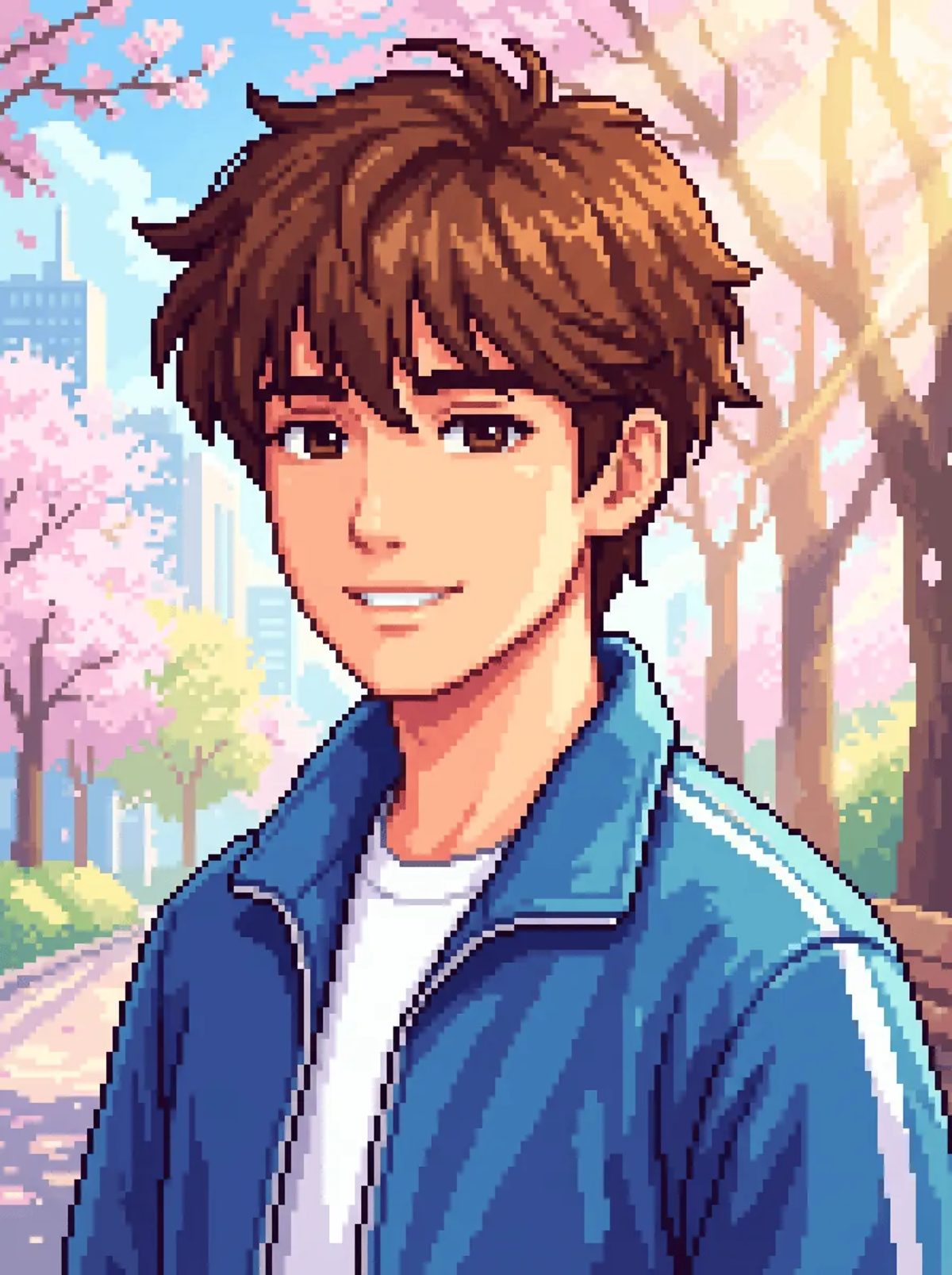
Three presets give a pixel-art look:
Typing "pixel" into the Style Picker search finds the first two. Retro Handheld does not have "pixel" in its name, so look for it by name or under Pop Culture.
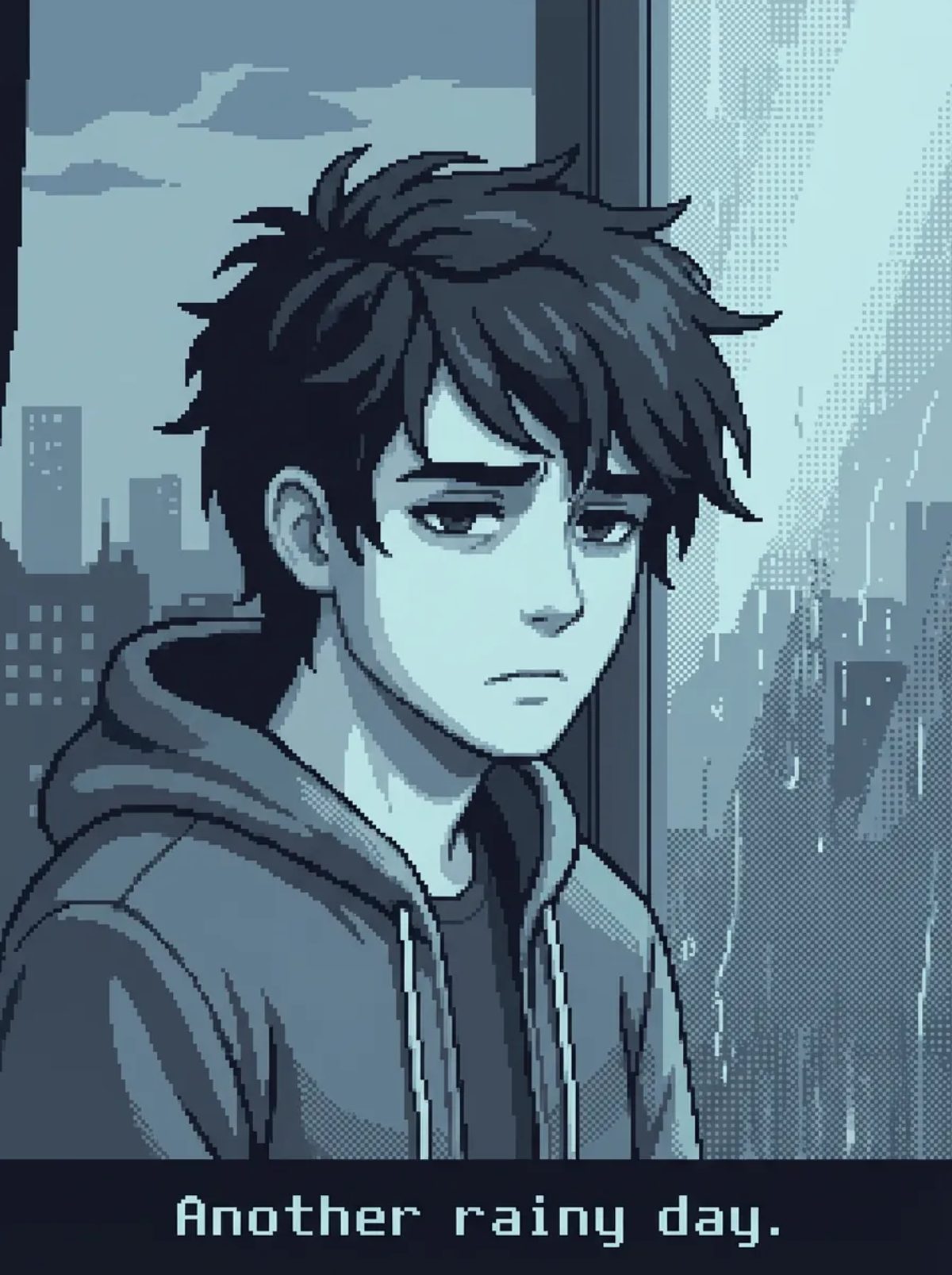
The preview images show scenes with backgrounds. Your character will not get one: the main image is always a single figure on plain white.
Flat and pixel styles lose fine detail first. Lace, thin chains, small logos, and fine hair strands tend to blur or vanish, and fewer pixels leave less room for them. Write the description around things that stay readable when the character is small:
Mika, a courier girl in her late teens, short and quick with a slightly oversized head. One spiky ponytail sticking straight up, big round eyes, a small bandage on her cheek. Cropped orange puffy jacket, white T-shirt, wide dark blue shorts, chunky white sneakers. Signature item: a big square yellow delivery bag on her back. Standing, one hand on the bag strap, confident grin.
The same brief works in a flat 2D preset and a pixel preset. Generate it in both and compare before you settle on a style for the whole cast.
Because the main image always has a white background, the tool removes background talk from your description. It splits the text at commas, semicolons, and line breaks, and drops every piece that contains words like background, backdrop, scene, setting, or environment. Periods do not split the text.
So "a jacket the color of a sunset scene" disappears whole, jacket included. Leave places out of the character brief and describe colors directly.
The reference sheet uses a fixed turnaround layout that asks for line art, soft cel shading, and flat colors, plus your chosen style. Your description is not sent again; the sheet is built from the main image.
In a flat 2D preset, that matches well. In a pixel preset, the sheet can come back softer or less blocky than the main image, because the layout's line-art wording and the pixel style pull in different directions. Treat the sheet as a turnaround check for the side and back, and treat the main image as the style reference. For what a usable sheet needs, see the anime character reference sheet guide.
It helps to be clear about what you get, especially if you came looking for an anime sprite maker:
To use a result in a game, treat it as concept art: redraw or clean it up in a pixel editor at your target resolution, and cut it out from the white background yourself.
Open both images at full size:
If something is off, change one part of the description and generate again, so you know which edit helped.
If you want the full-body design to carry more detail, the full body anime character maker guide covers head-to-toe briefs. For a rounder, cuter flat look, see the chibi character maker guide. Once the design is settled, the consistent character guide explains how to keep it recognizable in later scenes.
Yes. In the anime character creator, write a name and a description, switch the style from the default American 3D to a flat 2D preset such as Bold Hard-Edge Cel, Soft Glow Flat, or Vector Flat Blocks, and generate. You get a 3:4 full-body front view and a 16:9 front, side, and back sheet.
Yes. The Style Picker includes three pixel-art presets: Pixel, Raster Pixel Art, and Retro Handheld. The result is a pixel-art look rendered at 2K, not a hand-placed low-resolution pixel grid.
No. It makes one front-view character image and one turnaround sheet. There are no animation frames, walk cycles, or sprite sheets, so treat the output as concept art and finish game assets in a pixel editor.
No. The main image always uses a plain white background. Cut the character out in an image editor if you need transparency.
You need to sign in to generate. Check the pricing page for the current plans before you start.
From inspiration to complete plot, quickly output chapter structure