An AI manga generator turns a written description into manga-style art: a single panel, a short strip of panels, or a cover. You decide what happens in the scene, and the model does the drawing.
It does not write and letter a finished chapter for you. The useful way to work is panel by panel: describe one moment clearly, check the result, and keep the words that describe your characters the same from image to image. Dialogue and sound effects go on afterwards, in an editor where you control the text.
This guide shows how to do that with the MkAnime AI anime image generator: which settings matter, how to pick a manga style, how to write a panel prompt, and how to build a short page.
The image generator has five settings:
- Prompt. What is in the panel: characters, action, framing, background, and the drawing treatment.
- Model. GPT Image 2 (the default) or Nano Banana 2.
- Style. A required preset picked from the Style Picker, which shows each style as a thumbnail.
- Aspect ratio. 1:1, 4:3, 3:4, 16:9, or 9:16. The default is 9:16.
- Resolution. 1K, 2K, or 4K.
Each run returns one image. There is no photo or reference-image upload, so you cannot turn a photo into manga here, and you cannot feed in a page you drew earlier. Everything comes from the prompt and the style.
The Style Picker lists over a hundred presets, and typing "manga" into its search box narrows the list. At the time of writing, the ones closest to manga include:
- Detailed Urban Manga for modern settings with dense linework.
- Japanese Shoujo Manga for soft, romance-leaning character art.
- Healing Adventure Manga for gentle, slice-of-life or travel stories.
- Cartoon Flat Manga for simpler, flatter shapes.
- Bold Ink Lines when you want heavy contours.
- Korean Manhwa Impasto and 2D Manhua if you are making webtoon-style or Chinese manhua-style art rather than Japanese manga.
Pick one style for the whole story. Switching styles between panels is the fastest way to make a page look like it was drawn by different people.
If you want classic black-and-white manga, say so in the prompt as well: "black and white ink, screentone shading, no color".
- 3:4 for a single page or a cover. It is close to a printed manga page.
- 9:16 for a vertical page or a scrolling webtoon segment.
- 16:9 for one wide panel, such as an establishing shot of a town or a big action moment.
- 1:1 for a single square panel or a four-panel strip arranged in a grid.
Write what the reader sees, in this order:
- Drawing treatment. "Black and white manga panel, clean ink lines, screentone shading." Put it first so it is not lost at the end.
- Framing. Wide shot, medium shot, close-up, or over-the-shoulder. Manga relies on these changes to set the pace.
- Character. Age, hair, outfit, and one signature item. Use the exact same words in every panel the character appears in.
- Action and expression. One action and one emotion per panel. "She slams the notebook shut, eyes narrowed" reads better than a list of moods.
- Background. A simple location and the time of day. Busy backgrounds compete with the character.
- Space for lettering. "Leave empty space in the upper right for a speech bubble." Do not ask the model to write the dialogue; add it later.
Example prompt
Black and white manga panel, clean ink lines, screentone shading, no color. Medium close-up. A high school girl with a short black bob, a red hair clip, and a navy school blazer stands at a rainy bus stop, holding a broken umbrella and looking up at the sky with a tired half-smile. Rain lines across the frame, a blurred street behind her. Leave empty space in the upper left for a speech bubble.
Choose 3:4 for a page-sized panel or 16:9 for a wide one, pick a manga style, and generate.
Make a short page
You can describe more than one panel in a single prompt. Number the panels, give each one its framing and action, and say how they are arranged:
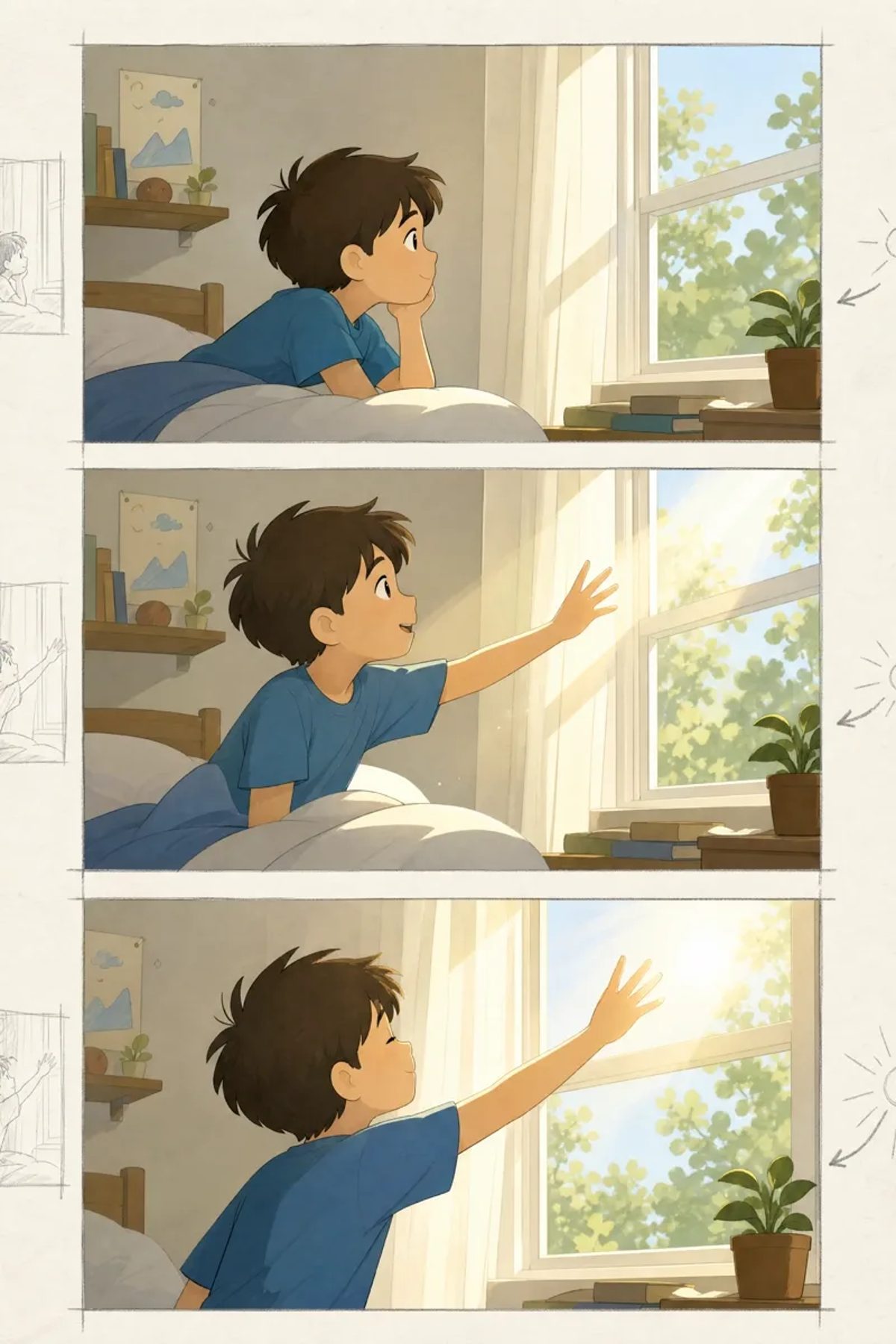
Manga page with three horizontal panels stacked top to bottom, white gutters between panels. Panel 1: wide shot, a boy asleep in bed in a small sunlit room. Panel 2: medium shot, he opens his eyes and reaches toward the window. Panel 3: close-up of his hand in the morning light. Same boy in every panel: messy dark brown hair, blue T-shirt.
Keep it to three or four panels. The more panels you add to one image, the smaller each face becomes and the more likely the order or a detail comes out wrong. Check the panel order and the character's face in every panel before you keep a result.
For a longer chapter, generate one page or one panel at a time and assemble the pages in your own layout or comic editor. If you need to plan the story beats before drawing, the script to storyboard guide shows how to break a scene into shots.
Without a reference-image upload, the prompt is your character sheet:
- Write one short description for each recurring character and paste it word for word into every panel.
- Give each character one signature item, such as a hair clip, a scarf, or a scar, that is visible at small sizes.
- Change one thing per new version: the pose, the framing, or the background, not all three.
If you need to see a character from the front, side, and three-quarter view before drawing a whole chapter, the anime character creator returns a full-body image and a reference sheet from one brief. The consistent character guide goes deeper on keeping a cast recognizable. For a cute side-gag version of a character, see the chibi character maker guide.
Generated text inside images can come out misspelled or distorted, and you cannot edit it afterwards. Leave speech bubbles empty or leave clear space for them, then add the dialogue, captions, and sound effects in an image or comic editor. That also lets you translate the page or fix a line without regenerating the art.
Use your own story and characters
Use the generator for your own story and your own characters. Do not use it to copy pages or characters from a published manga.
Once you have panels you like, you can animate them. The guide to animating manga panels with AI covers protecting the linework, handling speech bubbles, and choosing restrained motion.
It is an AI image tool that draws manga-style art from a text description. With MkAnime you write a prompt, pick a model, a style, an aspect ratio, and a resolution, and the model draws one image per run.
Can it make a full manga page?
It can draw a page with a few panels when you describe each panel in the prompt. For longer chapters, generate page by page and assemble them yourself, and check each result for panel order and character details.
Do not rely on it for dialogue. Leave space for bubbles in the prompt and add the text in an editor, where spelling and placement stay under your control.
No. The image generator works from a text prompt and a style preset. There is no photo or reference-image upload.
Generation follows the current sign-in and account credit rules. Check the live pricing page before you start.
